Enable Eggplant Cloud for Eggplant Functional via PCS
Persistent Connection Service (PCS) provides the ability for Eggplant Functional (EPF) to access PCS-managed connections via the --enableEggcloud flag. When enabled, the managed connections appear in Eggplant Functional connection list, where user can select and connect to any available system-under-test (SUT). For full command options, see epgw service in the CLI Reference.
- Eggplant Functional (EPF) must be installed with a valid license.
Starting Persistent Connection Service (PCS) with EggCloud Enabled
Use the following commands to start Persistent Connection Service (PCS) with EggCloud enabled:
./epgw service \
  --settingStore <settingStore> \
  --enableEggCloud <enableEggCloud> \
  --eggcloudVncPort <eggcloudVncPort> \
  --username <username> \
  --password <password> \
  --port <port> \
  --url <url>
The available options are:
| Key | Description |
|---|---|
settingStore | Where to load connection data from. Use studio to expose connections from your Eggplant Functional Connection List, or omit to use connections defined in Eggplant Gateway. |
enableEggCloud | Enables EggCloud functionality to expose connections to Eggplant Functional. |
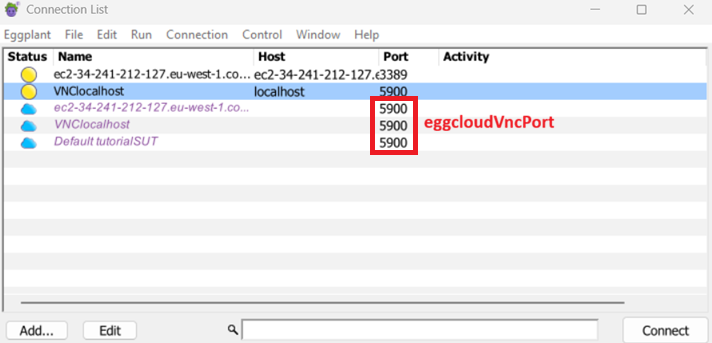
eggcloudVncPort | The port for the Client proxy stream (e.g., 5900). |
username | The username Eggplant Functional uses to authenticate with EggCloud (Basic authentication). |
password | The password Eggplant Functional uses to authenticate with EggCloud (Basic authentication). |
port | The HTTP port for Persistent Connection Service (PCS). Default: 5000 |
url | The HTTP address and port for Persistent Connection Service (PCS) (e.g., http://0.0.0.0:5000). Use when the default port conflicts or binding to a specific network interface. |
For example, to start up Persistent Connection Service (PCS) with EggCloud feature, use the following command:
./epgw service --settingStore studio --enableEggcloud --eggcloudVncPort 5900 --username <user> --password <password> --port 5000 --url "http://localhost:5000"
Connect from Eggplant Functional Cloud Preferences
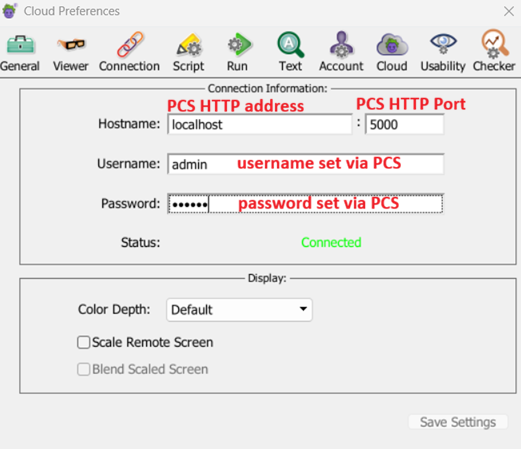
Before connecting from Eggplant Functional, ensure Persistent Connection Service (PCS) is running with the --enableEggcloud flag (see the previous section). Then navigate to Eggplant Functional Cloud Preferences and enter the connection information:
- Host: the address of the machine running Persistent Connection Service (PCS) (use the IP or hostname if Eggplant Functional is on a different machine;
localhostonly works when Eggplant Functional and Persistent Connection Service (PCS) run on the same machine). - Port: the Persistent Connection Service (PCS) HTTP port (default
5000). - Credentials: the
--usernameand--passworduser started the service with.
Once connected, Eggplant Functional lists the gateway's connections as available devices.
For details, see Eggplant Functional Cloud Preferences.